Import
Mybusiness allows you to import your own data to any of your database table.
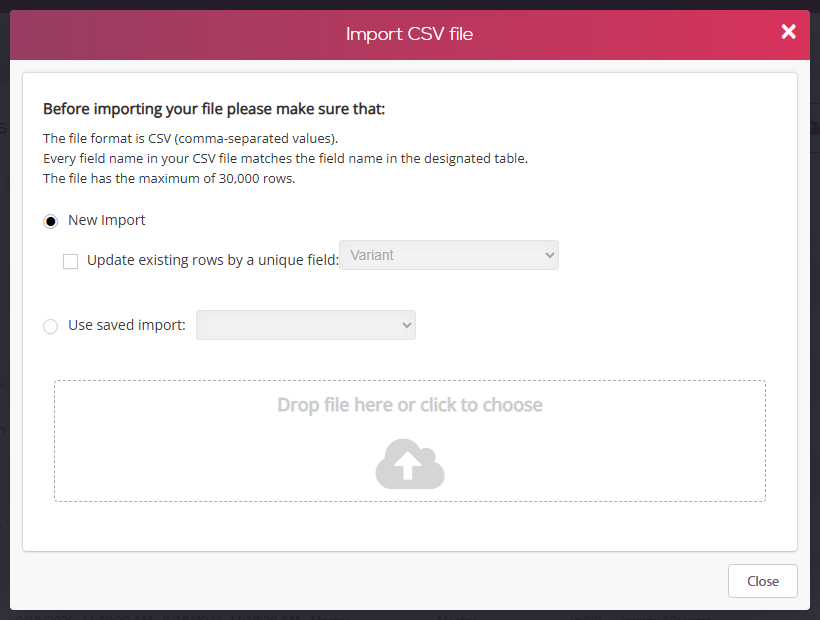
Beforeimporting, please make sure that:
1. The file is saved in a CSV (Comma-Separated Values) format.
2. Each field name in your CSV file matches a field name in the designated table.
3. The file has a maximum of 5,000 rows.
4. If you have a date field, make sure it's in the following format: MM/DD/YYYY
The three fixed fields that Mybusiness adds to your table are self-generated (Id, updatedat, createdat).
Make sure that all the fields match exactly in your file and your Mybusiness table as shown in the next example (Name, Number, Date):

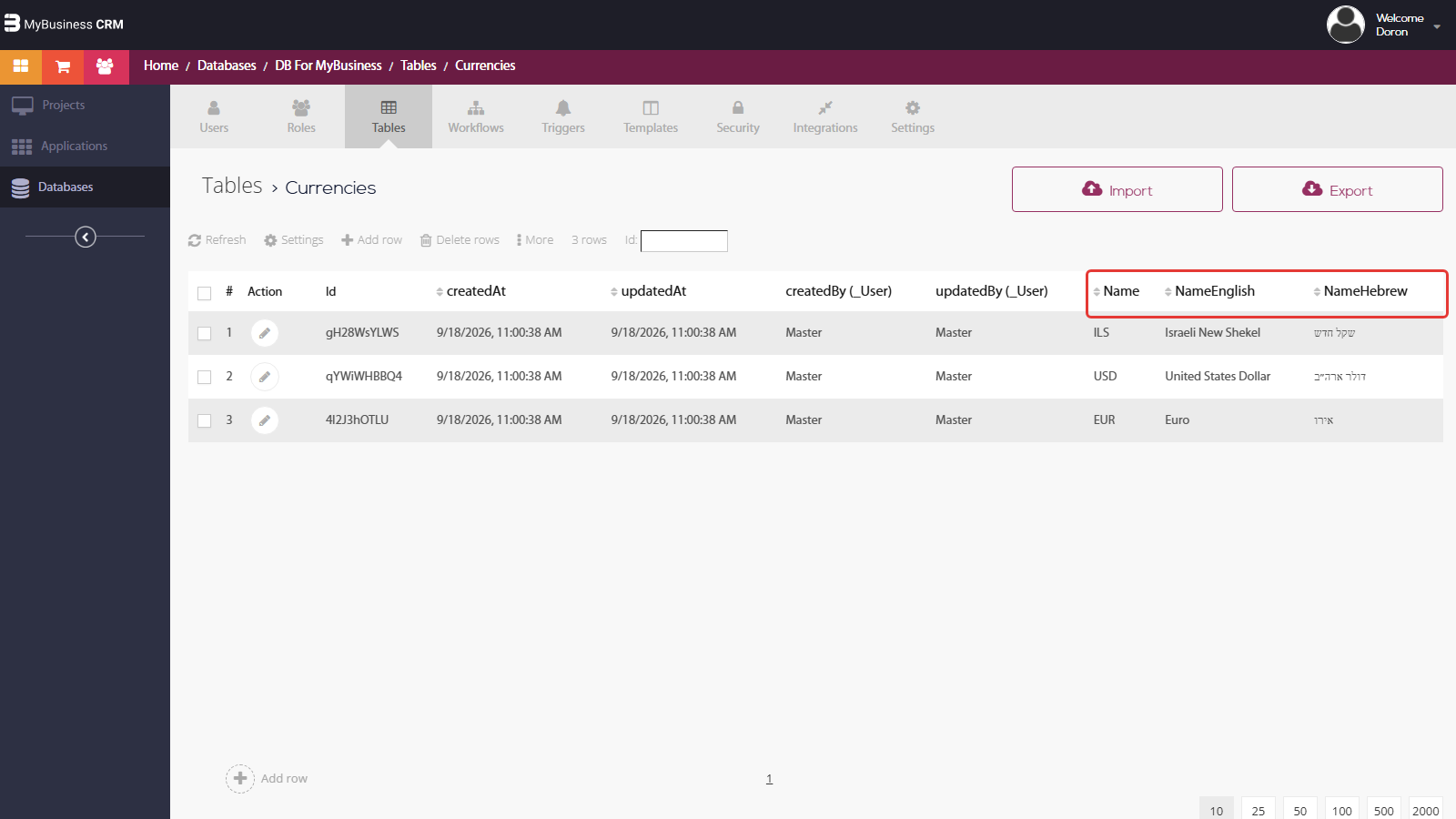
To start, go to your table and press the  button.
In the new window that opened, select or drag your file to the designated area. After doing so, you will see a short preview of your data. Make sure it all appears correctly!
That’s it! Now you can use your imported data to any of your tables!
Export
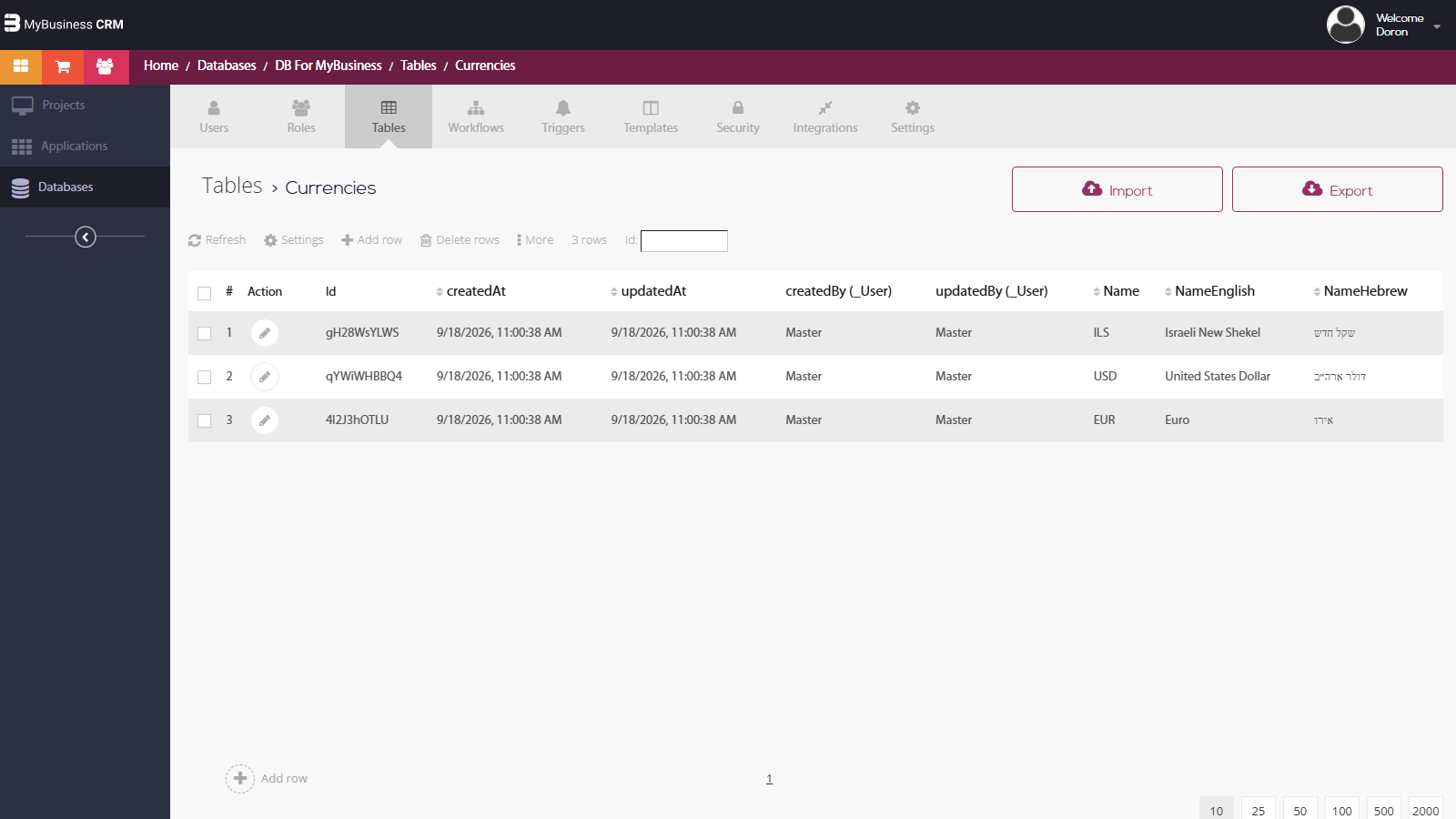
Simply hit the  button from inside any table and save the CSV file on your device. The file will consist of the complete table, including the three extra fields (Id, updatedat, createdat).